
Create and set up a Collection
Create your first Collection, add the right Attributes, and decide which fields Resell Scan should extract with AI or expect you to enter manually.
In this guide
What this guide covers
A Collection is the foundation for scans, tables, and exports. Its Attributes determine which data is maintained per Product, which values AI creates automatically, and which fields you fill in yourself.
Go to Collections
Open your dashboard and go to Collections in the left navigation.
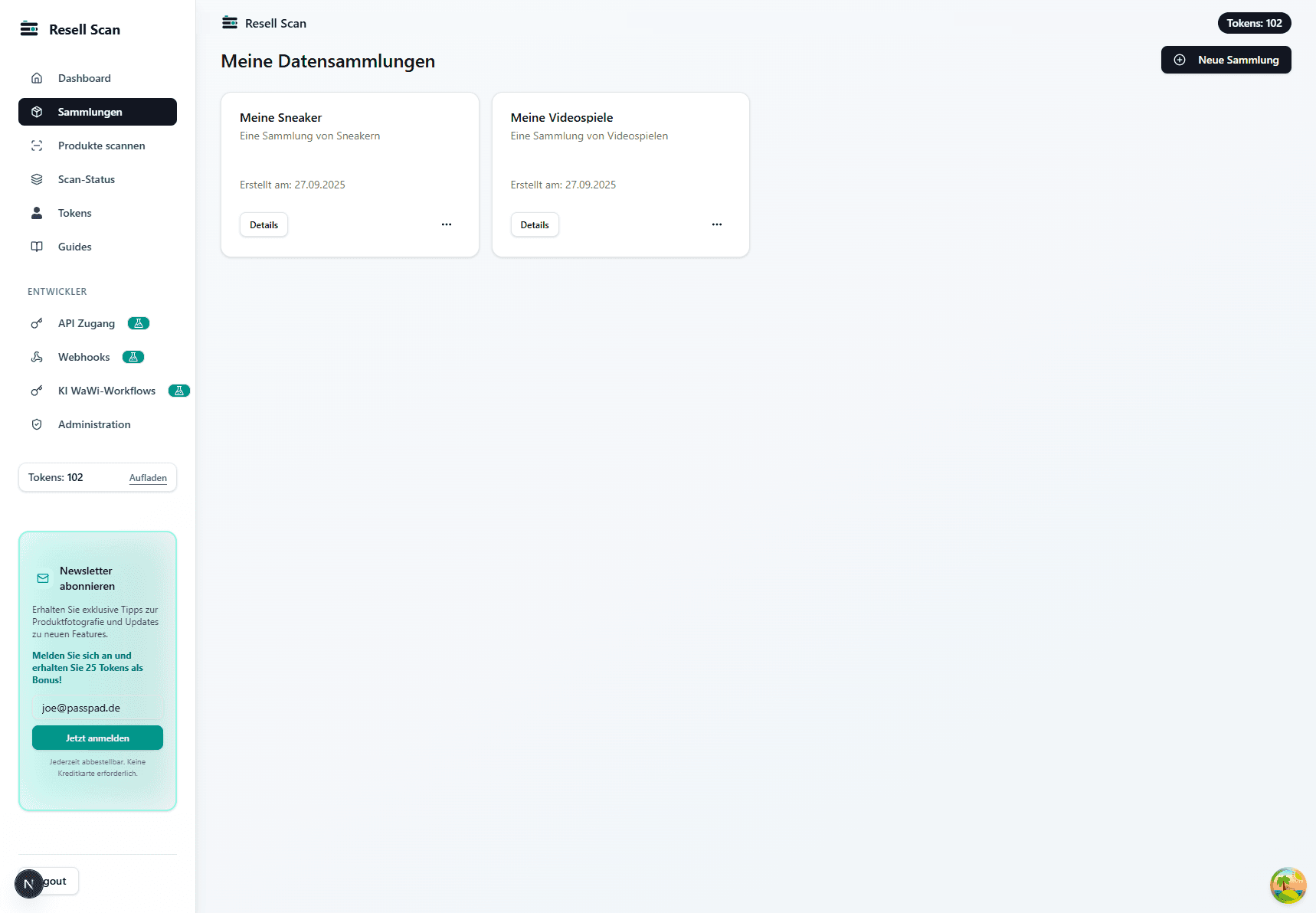
Create a new Collection
Click “New Collection” and choose a clear name. The description is optional, but useful when you work with multiple workflows.
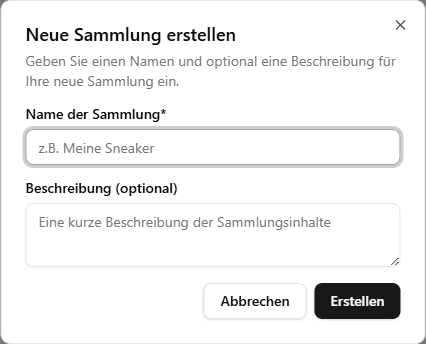
Keep naming simple
Plan Attributes
Open the Collection and switch to Attributes. There you define the fields saved for each Product Entry.
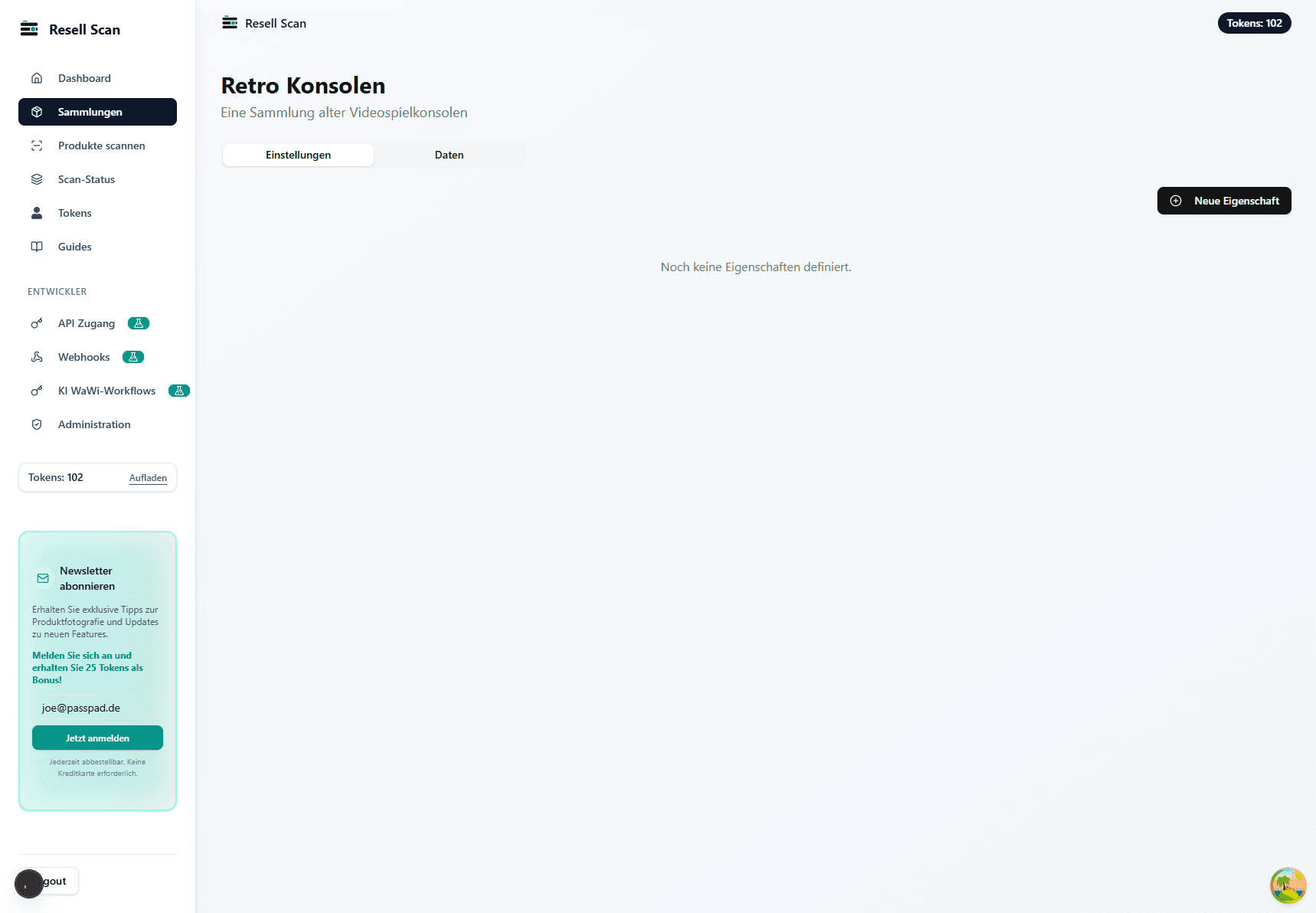
Create an Attribute
Create an Attribute with name, type, and options. Decide whether the field is required and whether AI should extract it.
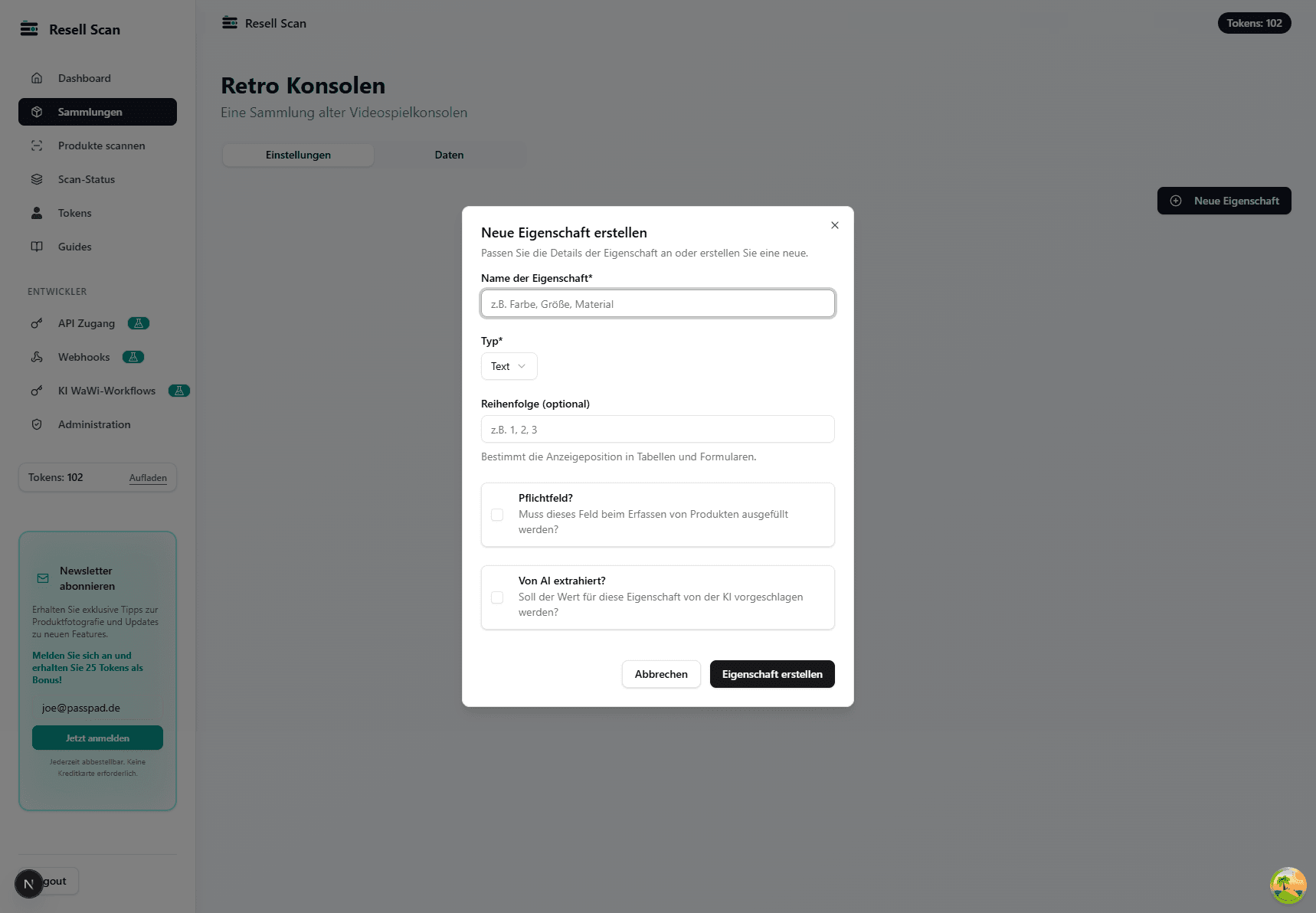
AI extraction
Set required fields intentionally
Understand options
Use suitable Attribute types so inputs, AI results, and CSV exports stay clean.
Text and long text
For titles, descriptions, or free-form notes.
Number and rating
For prices, quantities, conditions, or star values.
Single select and multi-select
For fixed value lists such as platform, size, or category.
Date, URL, and email
For validated fields with clear format checks.
Yes/no
For simple decisions such as original packaging available.
Automatic ID
For unique sequential Product or inventory identifiers.