
Resell Scan
Guide for all users

Scan Products with AI analysis

Learn the real scan workflow in Resell Scan: select a Collection, upload Product images, add manual fields, start batch analysis, and review the results in your Collection.

Duration: approx. 8 minDifficulty: beginnerLast updated: May 15, 2025

What this guide covers

The scan flow is not a free-form output configurator. Fields come from your Collection: AI Attributes are analyzed automatically, manual Attributes are entered by you. Export then happens from your Collection data table as CSV.

1
Collectionselect
2
Uploadprepare
3
Analysisstart
4
Statustrack
5
CSVexport
1

Select a Collection

Select the Collection your Products should belong to. Resell Scan then shows the AI Attributes and manual fields for that Collection.
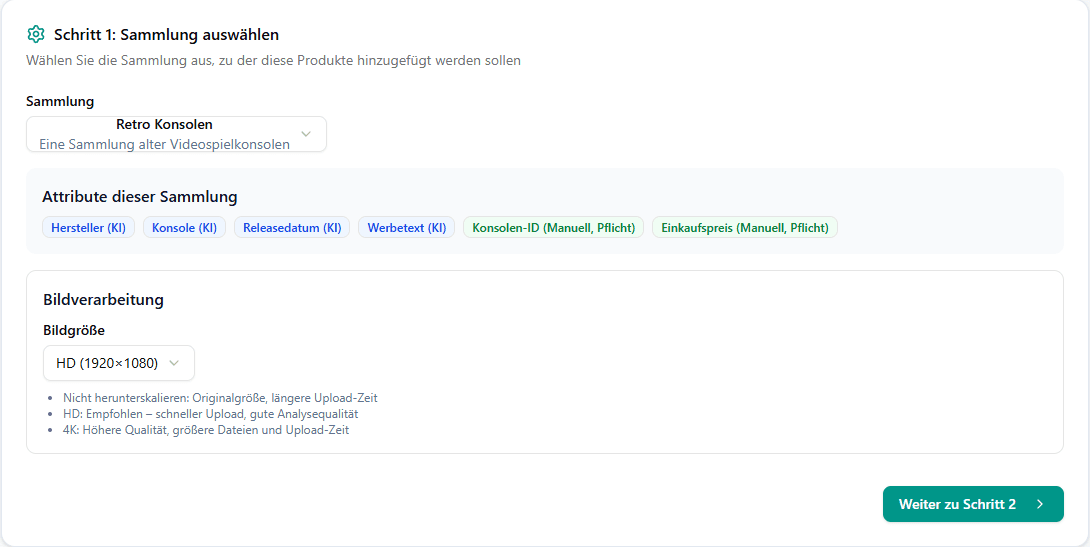
Resell Scan step 1: select Collection with Attributes and image size
In step 1 you select the Collection and image size. The Collection determines the Attributes for later analysis.
AI Attributes are shown as separate badges.
Manual fields are marked separately and required fields are made visible.
Image size can be selected before upload, for example HD or 4K.
2

Add Products

Add one slot per Product, upload images, and fill in the manual fields. Optionally, set default values for all Products.
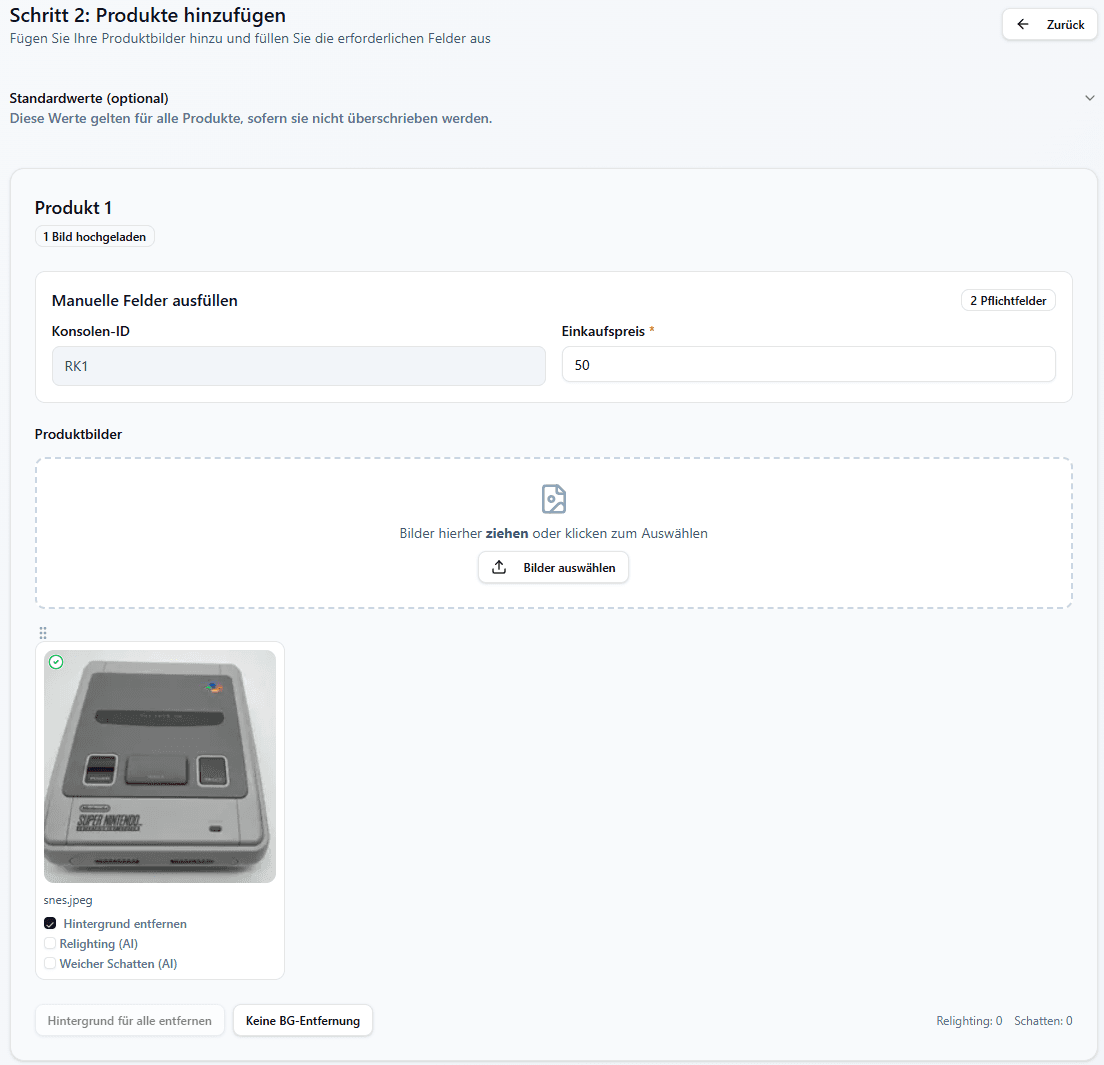
Resell Scan step 2: add Products, upload Product images, and maintain manual fields
The upload view is Product-based. Each slot contains images, manual fields, and image options.

Default values save time

If multiple Products need the same manual value, set it once as a default. You can still override individual Products afterward.

Image options per image

After upload, you can enable background removal, relighting, soft shadow, or an AI background for each image. These options are included in the token preview.
3

Review and start analysis

Before starting, Resell Scan shows an overview with Products, images, token costs, and enabled features.
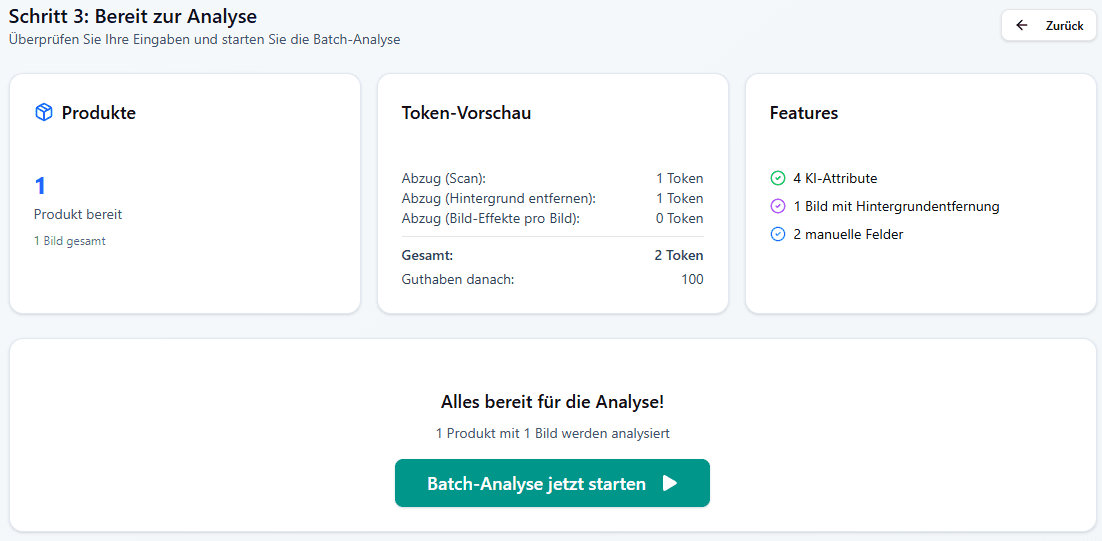
Resell Scan step 3: ready for analysis with Products, token preview, and feature overview
Review the summary before starting batch analysis. If you do not have enough tokens, you cannot continue.
The token preview calculates AI analysis, background removal, and image effects.
The feature overview shows AI Attributes, manual fields, and enabled image processing.
“Start batch analysis now” creates Product placeholders and starts analysis.
4

Track progress

After starting, you are redirected to batch status. There you see overall progress, individual tasks, and possible errors.
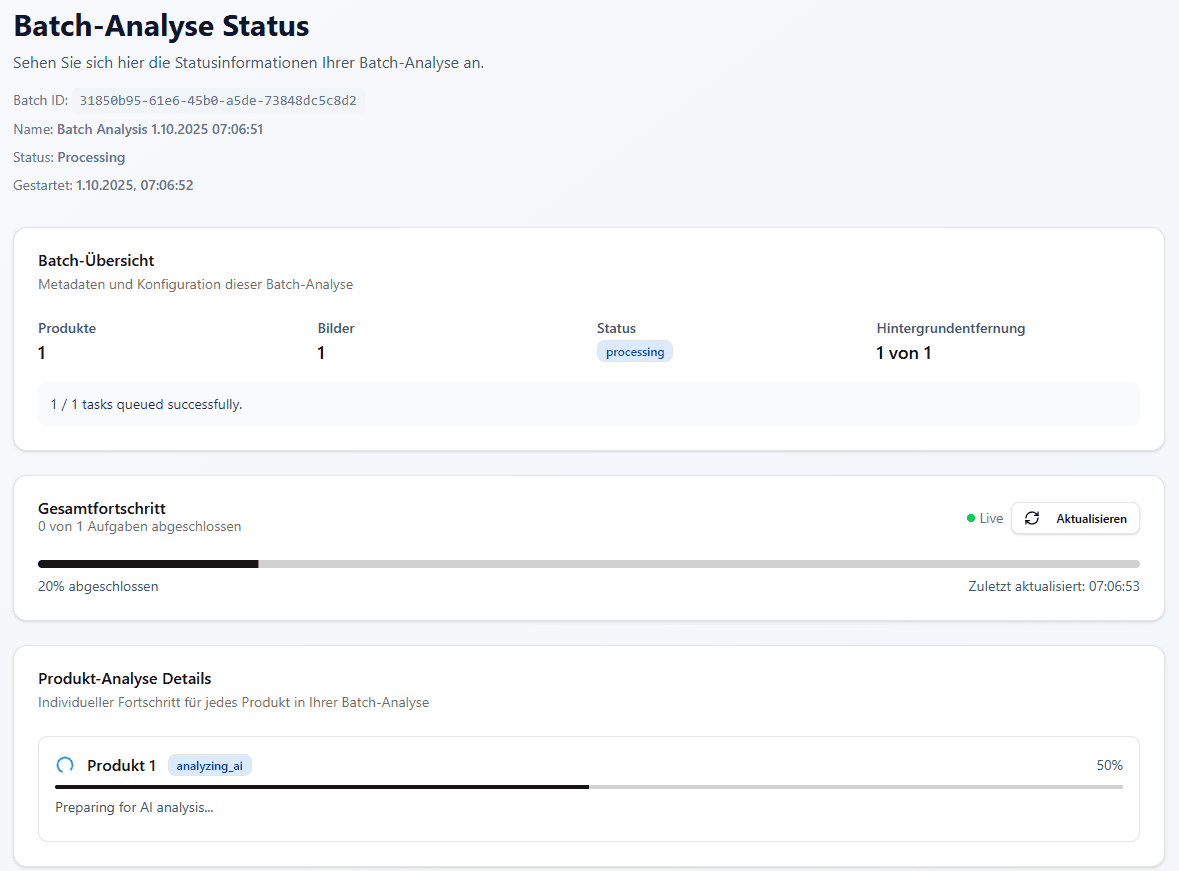
Resell Scan batch status with overall progress and Product analysis details
Batch status updates regularly and shows the processing state for each Product.

Analysis continues in the background

You can leave the page and return to batch status later. Once analysis is complete, Resell Scan takes you to the Collection with the processed Products.
5

Review results & export as CSV

After completion, you find the Products in the Collection data table. There you can edit Entries, analyze again, or export as CSV.
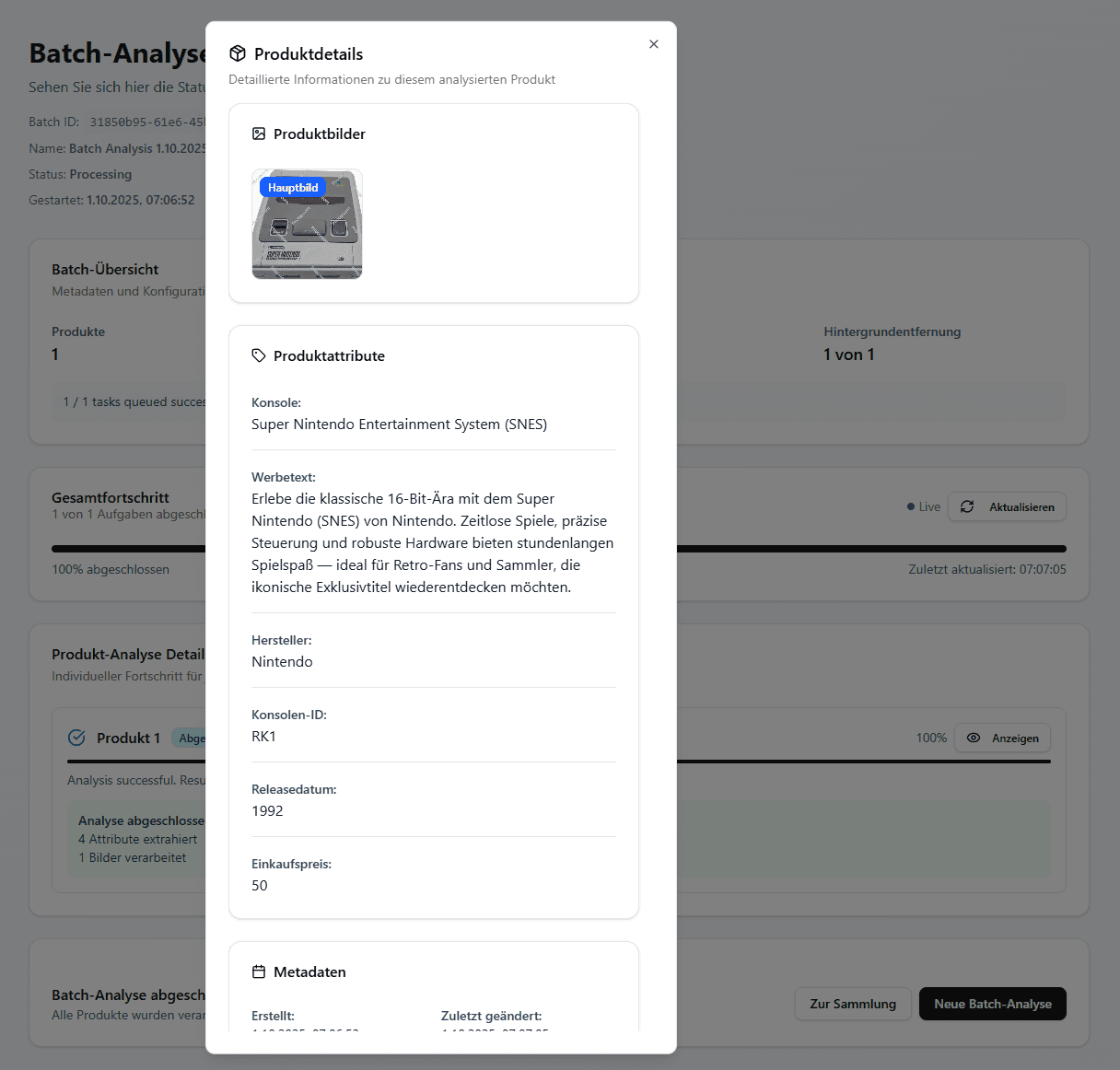
Resell Scan Collection with analyzed Entries in the data table
In the Collection, review extracted values and edit individual Entries if needed.
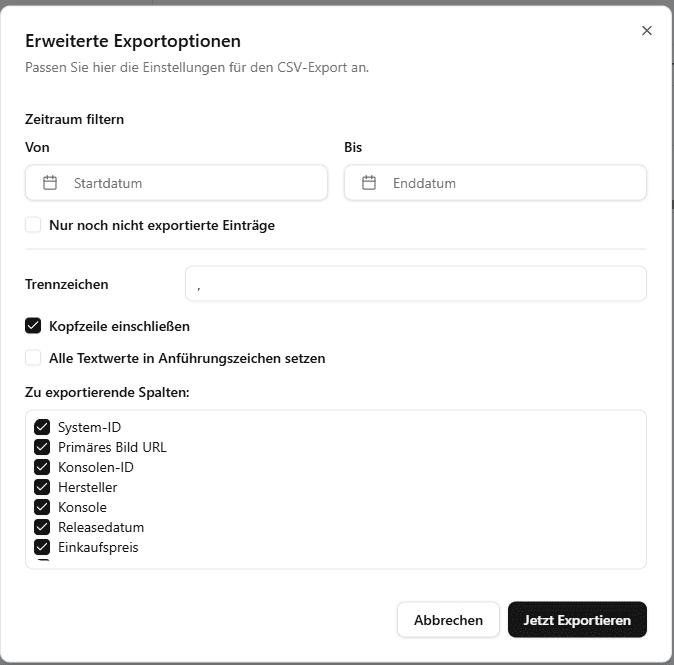
Resell Scan advanced CSV export options dialog
Export is a CSV export from the Collection. In advanced export, choose date range, delimiter, header row, and columns.

No direct eBay or shop output in this flow

The scan flow does not export directly to eBay or Shopify. If you want to reuse data, export it from the Collection as CSV and process it in your target system.

At the end of this guide you can:

select the right Collectionfill manual required fields correctlyupload Product images and set image optionsreview token costs before startingcheck batch status and resultsexport Collection data as CSV
Start your own scan