
Resell Scan
Guide for advanced users

Workflow optimization and best practices

Improve your workflow with clear Collections, well-chosen Attributes, good images, clean batch review, and controlled follow-up work.

Duration: approx. 8 minDifficulty: advancedLast updated: May 15, 2025

The best workflow is controllable

Resell Scan works best when Collection, images, manual fields, and export target fit together. This guide shows how to reduce follow-up work without inventing functionality or overloading processes.

1

Structure Collections around real workflows

Create Collections so their Attributes are truly consistent for one Product group.

One Collection per clear Product group is usually better than one huge universal Collection.
Separate workflows when required fields, image requirements, or export columns differ significantly.
Use clear names so the Collection is easy to find in the scan flow.
Keep old test Collections separate from production data.

Pragmatic separation

“Nintendo DS games” and “Sneakers” need different Attributes. In practice, two smaller Collections are faster than one Collection with many empty fields.
2

Keep Attributes clean

Only create fields that you actually analyze, enter manually, or export.
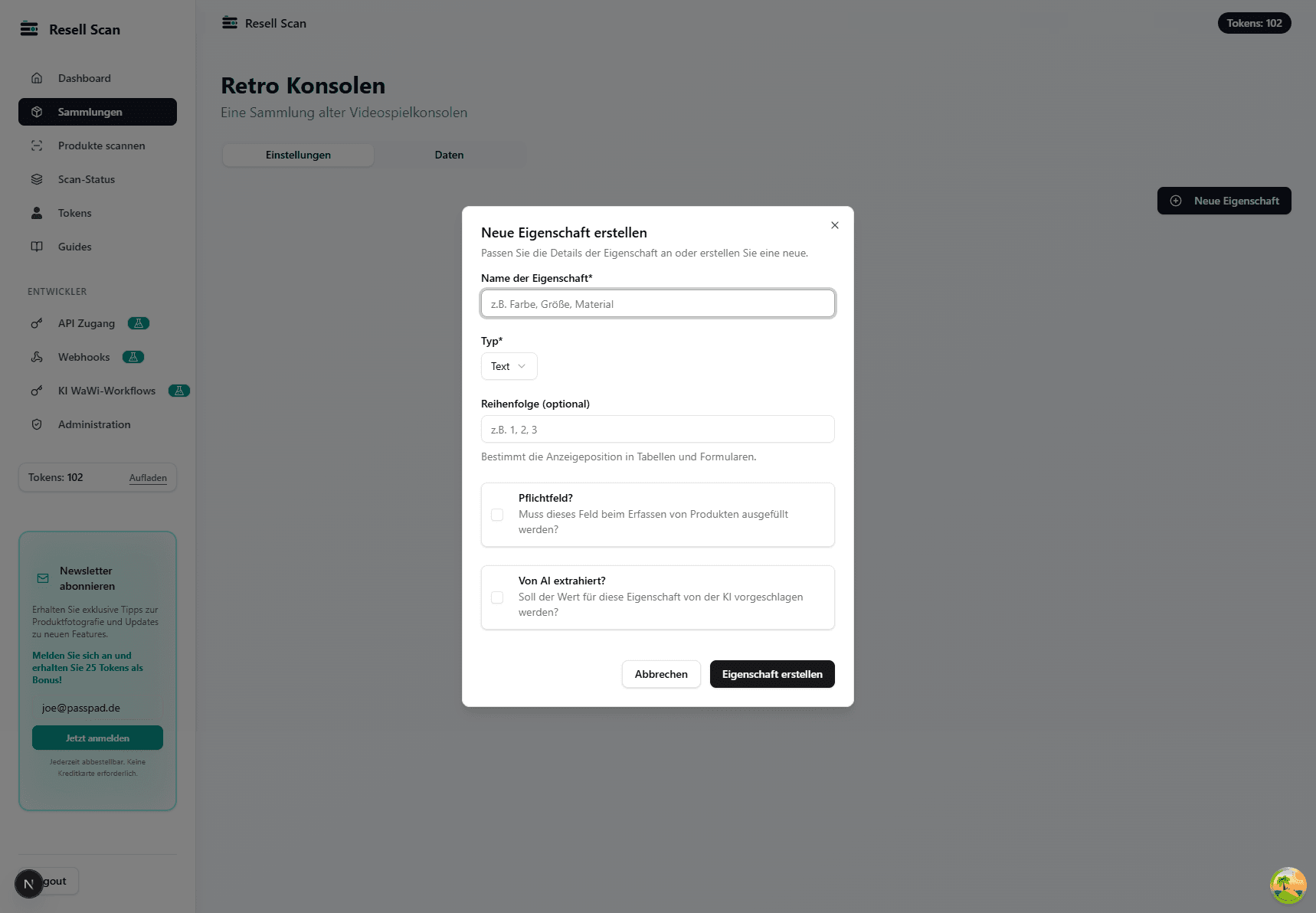
Resell Scan Attribute form with required field and AI extraction
The most important levers are type, required field, and AI extraction. These options later determine the scan flow.
Enable AI extraction for image-based information.
Use manual required fields only for values known before every scan.
Use selection fields for recurring values so CSV exports stay consistent.
Use automatic IDs when you need unique internal identifiers.
3

Prepare images before the batch

Good images reduce follow-up work. Photograph relevant sides and details before starting the batch.
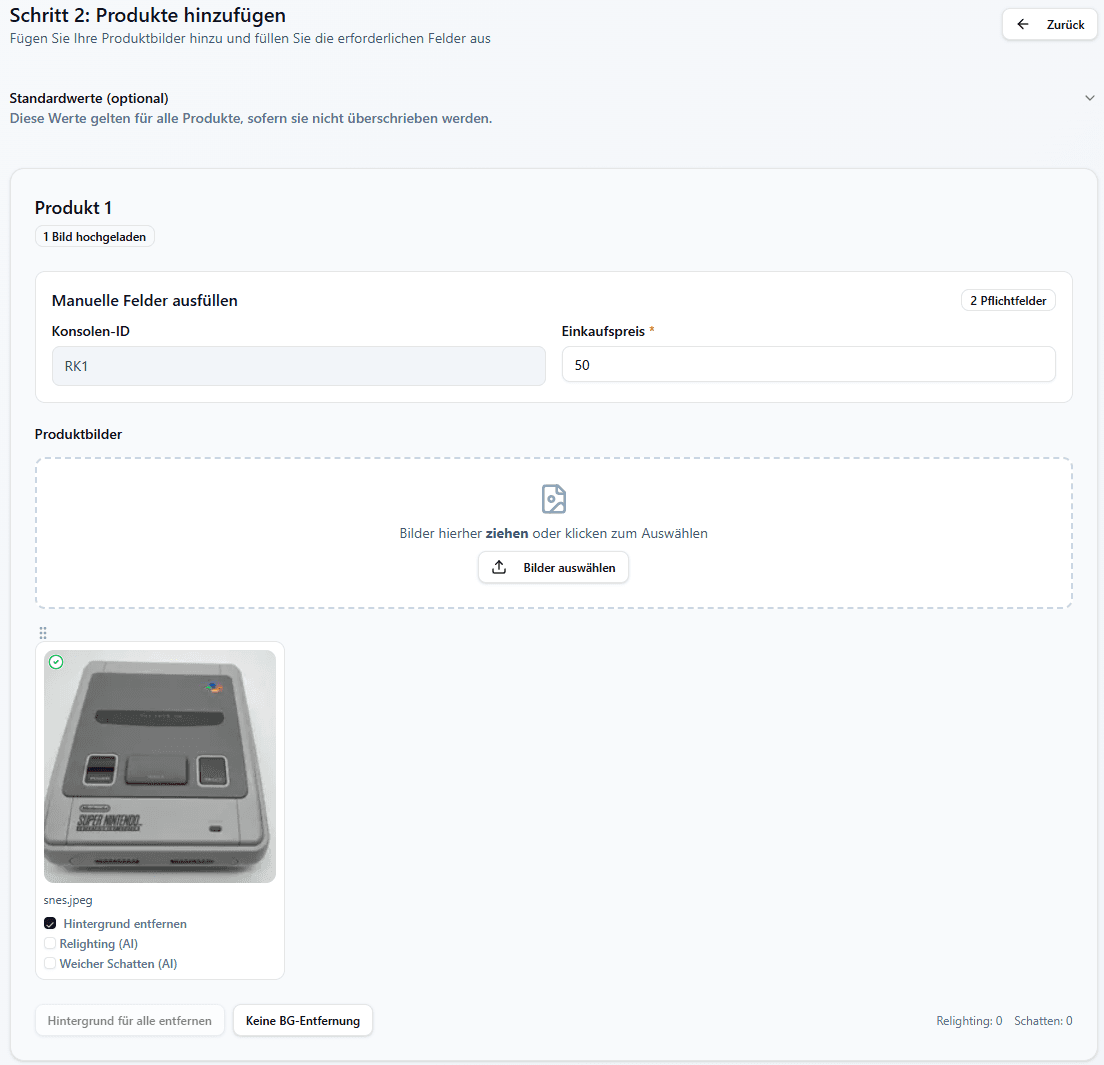
Resell Scan Product upload with images, manual fields, and image options
You can upload multiple images per Product and set image options individually.

Use multiple images deliberately

Front, back, and relevant details are often more useful than many similar photos from the same angle.

Enable image options intentionally

Background removal, relighting, shadow, and AI background are controlled per image. Use them where they truly improve later Product images.
4

Review the batch before starting

Check Products, images, manual fields, feature overview, and token preview before you start analysis.
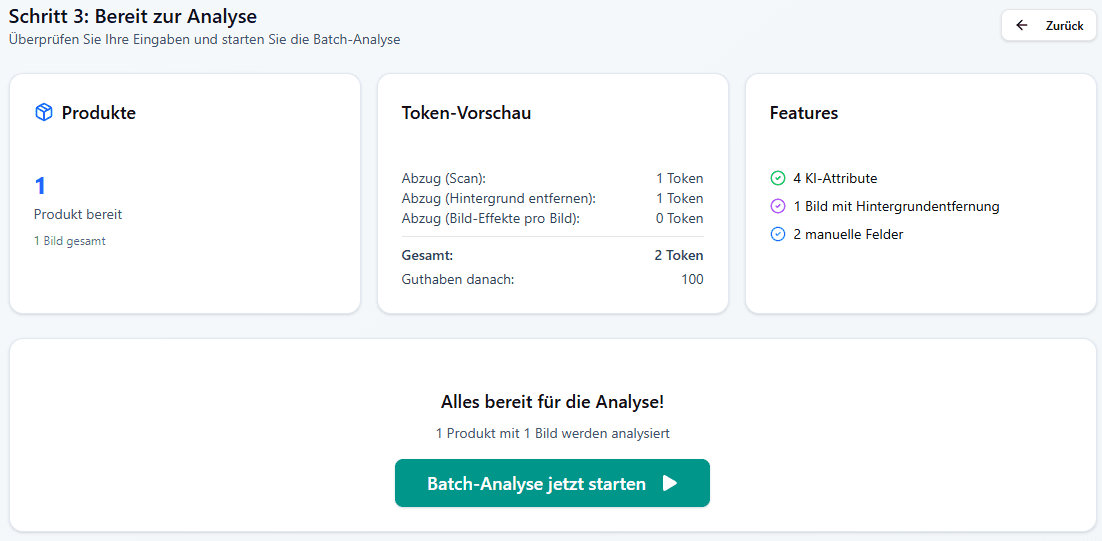
Resell Scan batch overview with token preview and enabled features
The analysis overview is the final check before starting the batch.
Add missing manual required fields before starting.
Check token preview before background or image options run.
For large batches, test with a few Products first.
After starting, check batch status for errors or open tasks.
5

Review results and export

Check the data table after completion, correct individual values, and only then export the CSV.
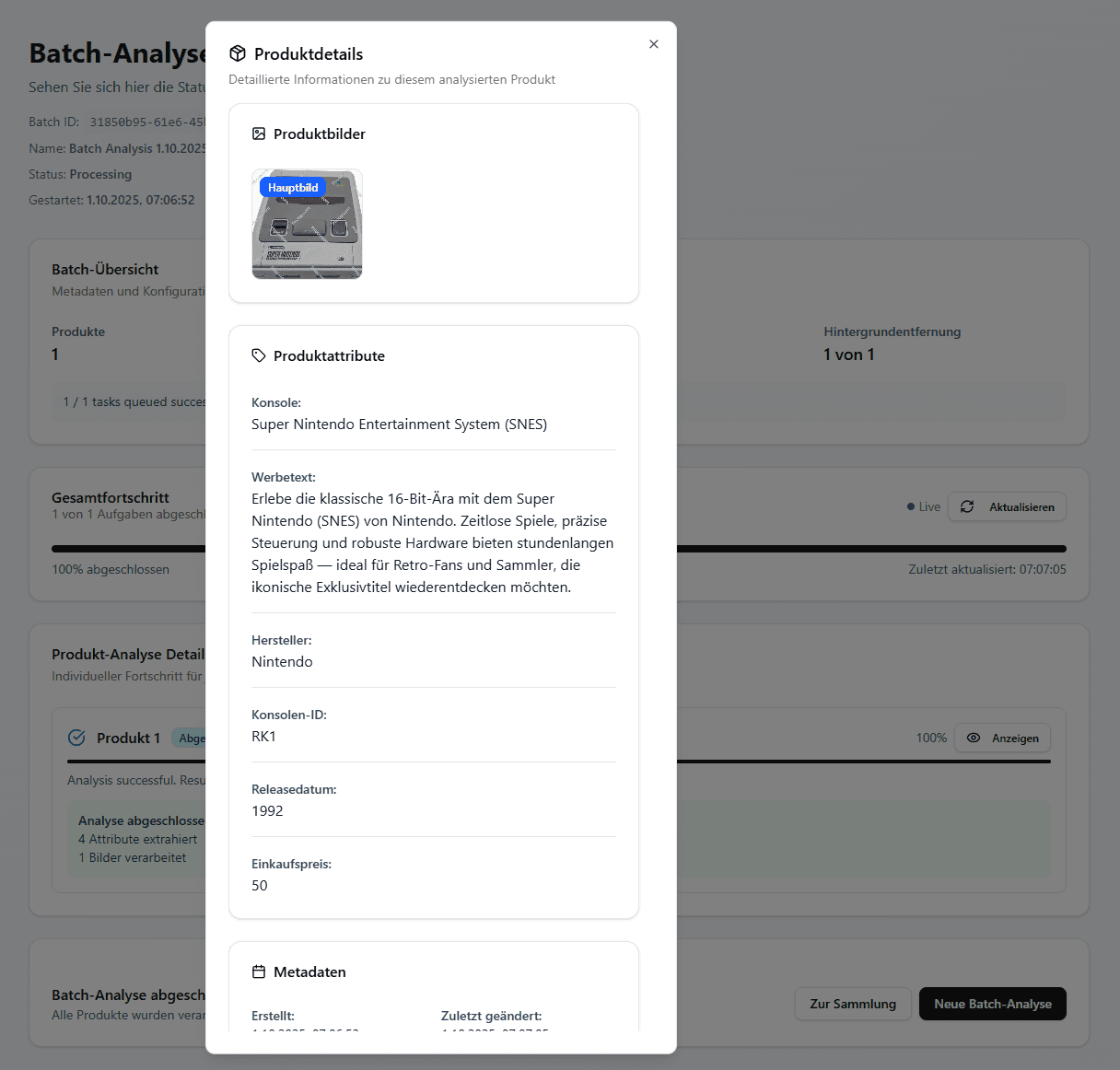
Resell Scan Collection with analyzed results in the data table
The data table is the checkpoint after analysis: review, edit, analyze again, or export.

AI results remain reviewable

Treat analysis as strong preparation, not an infallible finish. Review important fields before export or further processing.

At the end of this guide you can:

structure Collections more leanlyplan Attributes around scan and export needsuse image options intentionallycheck token preview before startingidentify batch errors fasterreview results before CSV export
Open scan workflow