
Data export and CSV download
Export Product data from your Collection as CSV. You can download everything quickly or use advanced export to control date range, columns, and CSV format more precisely.
In this guide
CSV instead of a black box
Export uses the data in your Collection. System columns, Attributes, and image URLs are output as CSV so you can reuse them in spreadsheets, inventory systems, or your own processes.
Open the Collection
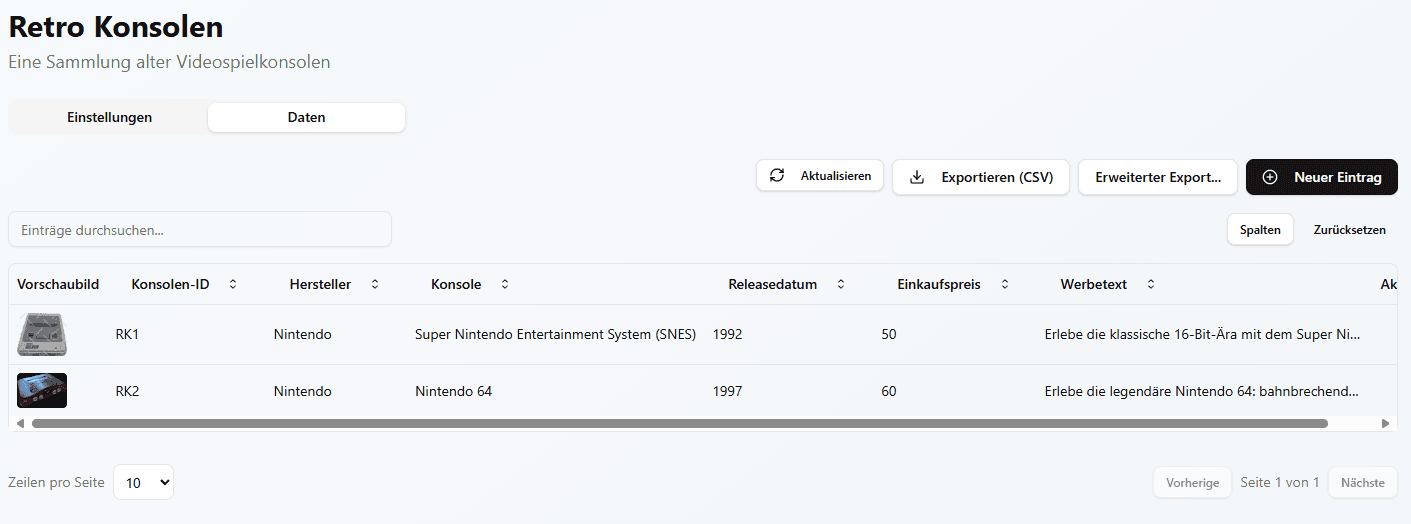
Go to Collections, open the Collection you want, and switch to the data area.
Start a quick CSV export
Use “Export (CSV)” when you need a quick download of Collection data without further selection.
Quick export
Creates a CSV directly from the available data in your Collection. This is ideal for backups, quick spreadsheet checks, or simple follow-up processing.
When to use it
Use it when you do not need to restrict columns and want all current Collection data in one step.
No token cost
Configure advanced export
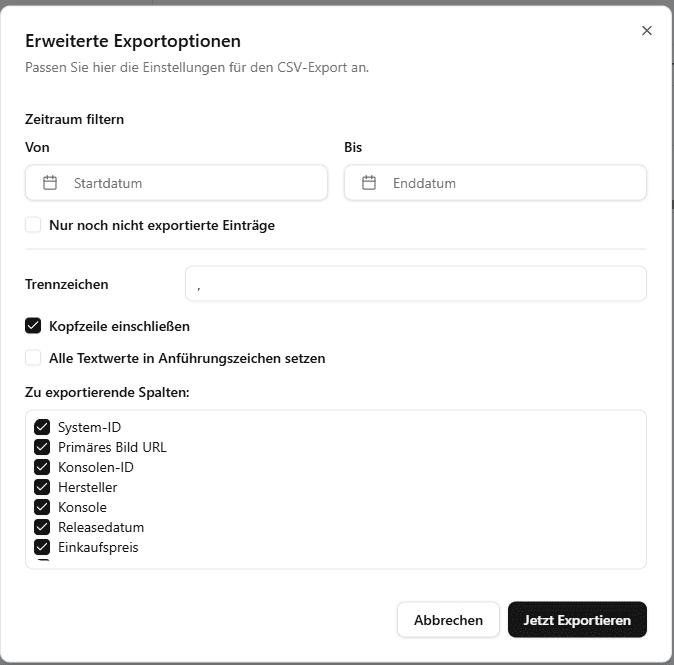
Open “Advanced export...” when you want to set date range, unexported Entries, delimiter, header row, quotes, or columns.
Review and reuse the CSV
Open the downloaded file in your spreadsheet app or import it into your target system.
| System ID | Primary image URL | Title | Condition | Price | Image 1 |
|---|---|---|---|---|---|
| 2313abc... | https://... | Pokemon Diamond Edition | Very good | 24.99 | https://... |
The table is a simplified example. Your CSV columns depend on the system columns, image columns, and Attributes selected for your Collection.